

Faculty guide · TRU Research Learning Hub
Adding TRU Research Learning Hub content to your Moodle course
There are two ways to bring TRU Research Learning Hub material into Moodle. Choose the one that matches what you want your students to see, then follow the steps.
Option 1 — Add individual activities to your course
Use this when you only want certain interactive activities from the TRU Research Learning Hub — not the whole site. You download the activity as a file, then upload it into your course.
Part A — Download the activity
1. Open the TRU Research Learning Hub modules and find the activity you want to use.
2. Scroll to the bottom of the activity and click Reuse.

The Reuse button sits underneath the activity.
3. Click Download as an .h5p file and save it somewhere you can find it again.
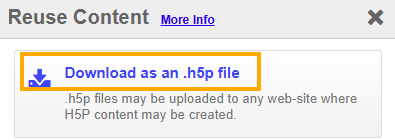
Save the .h5p file to your computer — you will upload it to Moodle in Part B.
Part B — Add the activity to Moodle
1. Log in to Moodle and open your course.
2. Turn on Edit mode using the toggle in the top right corner.
3. In the section where you want the activity, click the + button and choose Activity or resource.
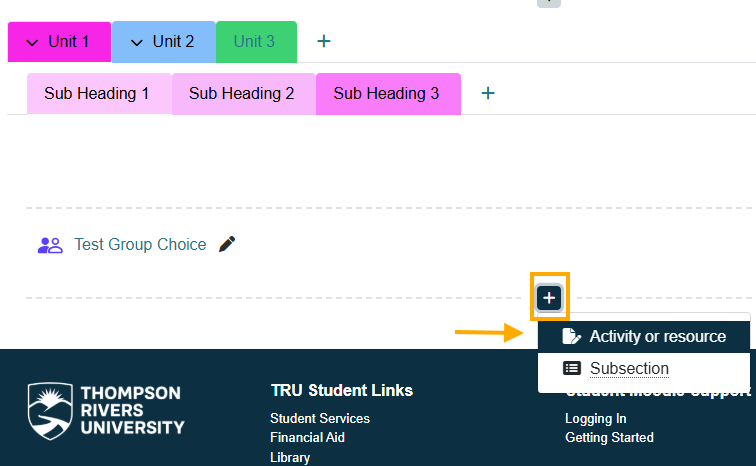
The + button appears in each course section once Edit mode is on.
4. Select H5P.

H5P is the activity type used for TRU Research Learning Hub content.
5. Enter a Name (required). A Description is optional.
6. Drag your .h5p file into the Package file area, or use the upload button.
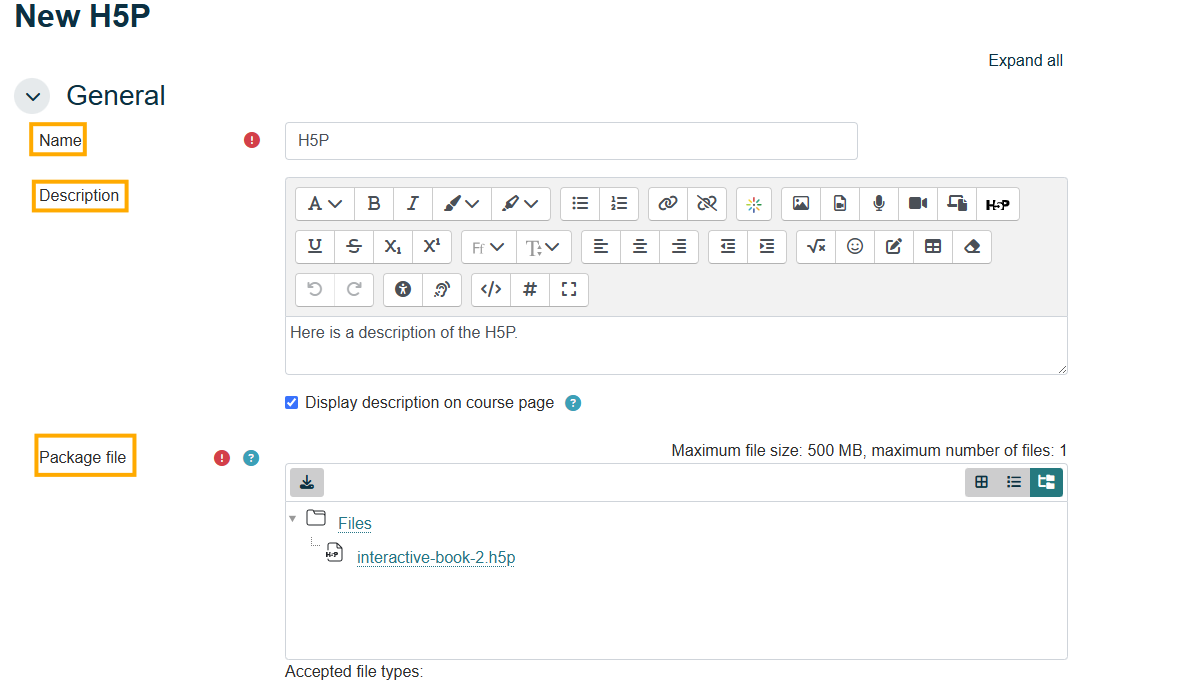
Name, Description and Package file are the only fields you need.
7. Click Save and display to check that the activity loads correctly.
Good to know: a downloaded activity is a copy, so it stays exactly as it was on the day you downloaded it. If the Research Learning Hub version is updated later, download the file again and re-upload it to pick up the changes.
Option 2 — Link to the whole TRU Research Learning Hub
Use this when you want students to have everything on the TRU Research Learning Hub, including modules added after your course starts. You are simply adding the address https://learninghub.trubox.ca to your course page.
1. In your Moodle course, turn on Edit mode using the toggle in the top right corner.
2. Click the + button in the section where you want the link and choose Activity or resource — the same starting point as Option 1, Part B, step 3.
3. Choose whichever of these three suits your course, then paste in the TRU Research Learning Hub address:
- URL — adds a single clickable link. Quickest option.
- Page — creates a page inside your course where you can add the link along with your own instructions.
- Text and media area — puts the link directly on the course page, with no extra click.

How each of the three choices looks to students on the course page.
4. Save your changes and click the link once to confirm it opens the TRU Research Learning Hub.
Thompson Rivers University · TRU Research Learning Hub · learninghub.trubox.ca